Product posts
Your product photos.
Your next post.
Turn your photos and product details into a post with coordinated layouts and captions. Edit it until it feels like your brand.
Create my product postYour product brief opens after sign-in. Add your photos there.
AI uses credits. Free exports include a watermark. Pricing
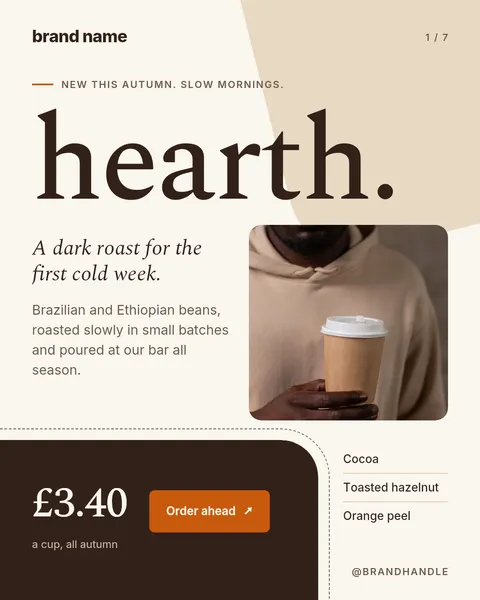
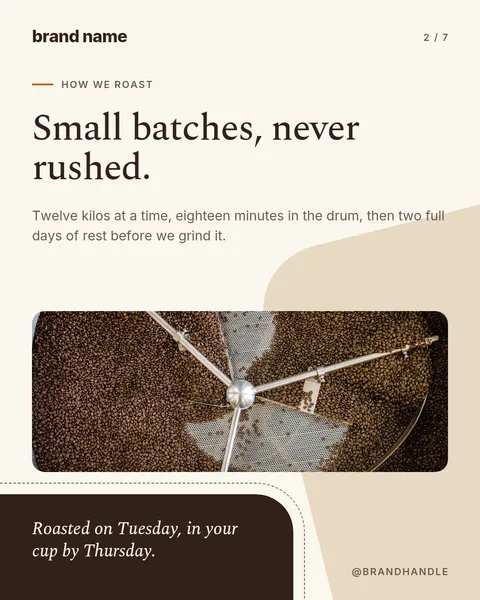
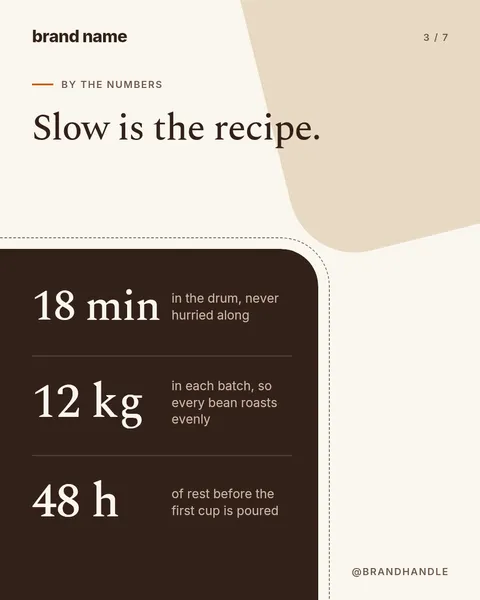
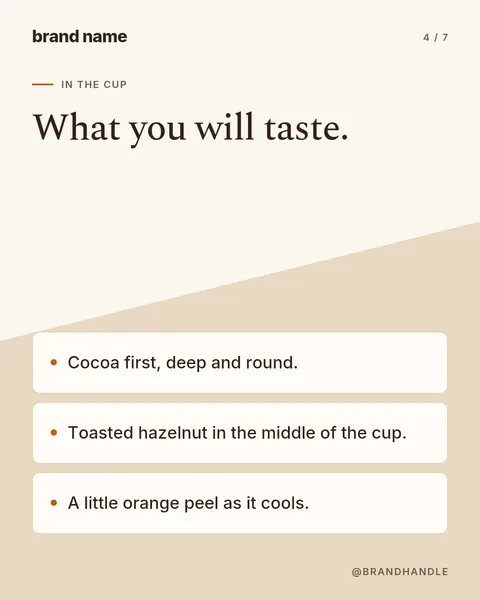
Illustrative homeware example using stock photography. Made in the editable ViralityWand template shown below.
What you bring
Start with what you already have.
Your photos + product notes
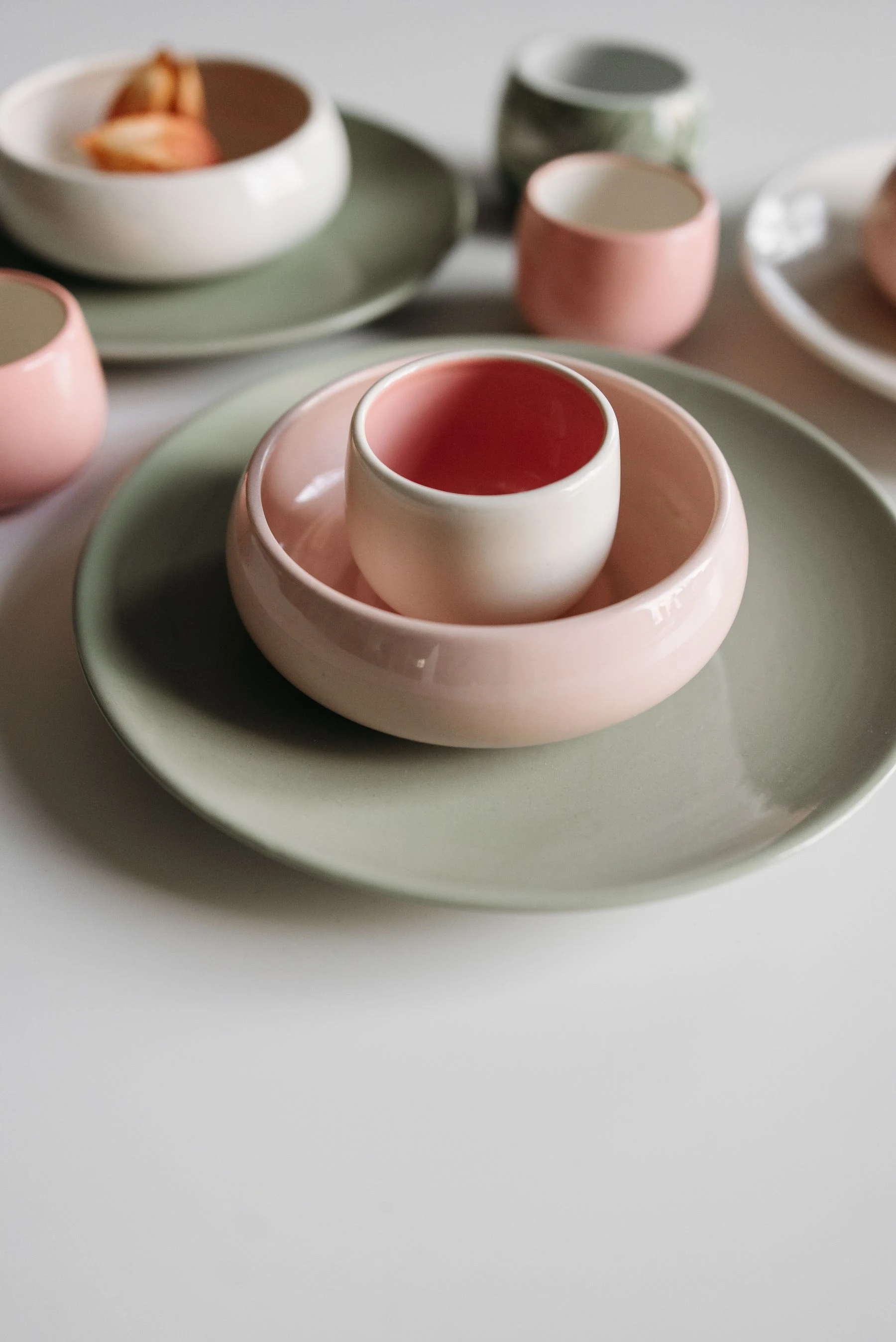
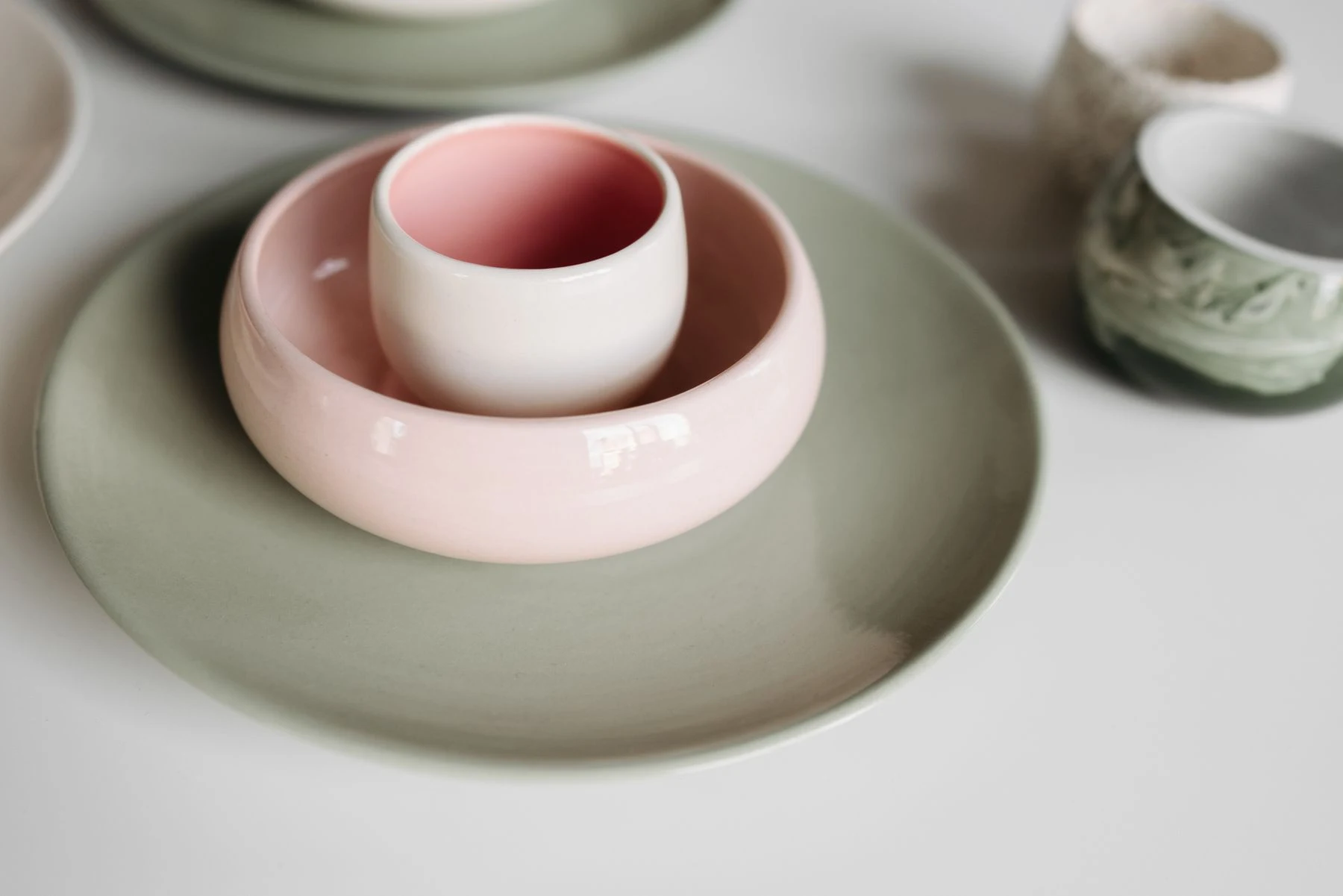

Introduce our tableware collection. Highlight the pink bowls and cream cup, and invite people to browse the collection.
View example instructions
Introduce our tableware collection. Highlight the pink bowls and cream cup, and invite people to browse the collection. Use four slides: collection, detail, styling and an invitation to browse. Keep the product photos. Use readable text and varied layouts.
For this Instagram example, the final slide points to the link in the shop’s bio. Set that link to your collection page before publishing.
Use this example text →Text only. Upload your photos and choose a template in the app.Your editable post
Composition. A sequence. Words that lead to the collection.
Make it yours
From photos to a post
you can make your own.
- 01
Add your photos and details.
Include the products and information you want to feature.
- 02
Choose a template and create.
Start with a visual style that suits your brand.
- 03
Make it yours.
Review the text and images, adjust the slides, and export.
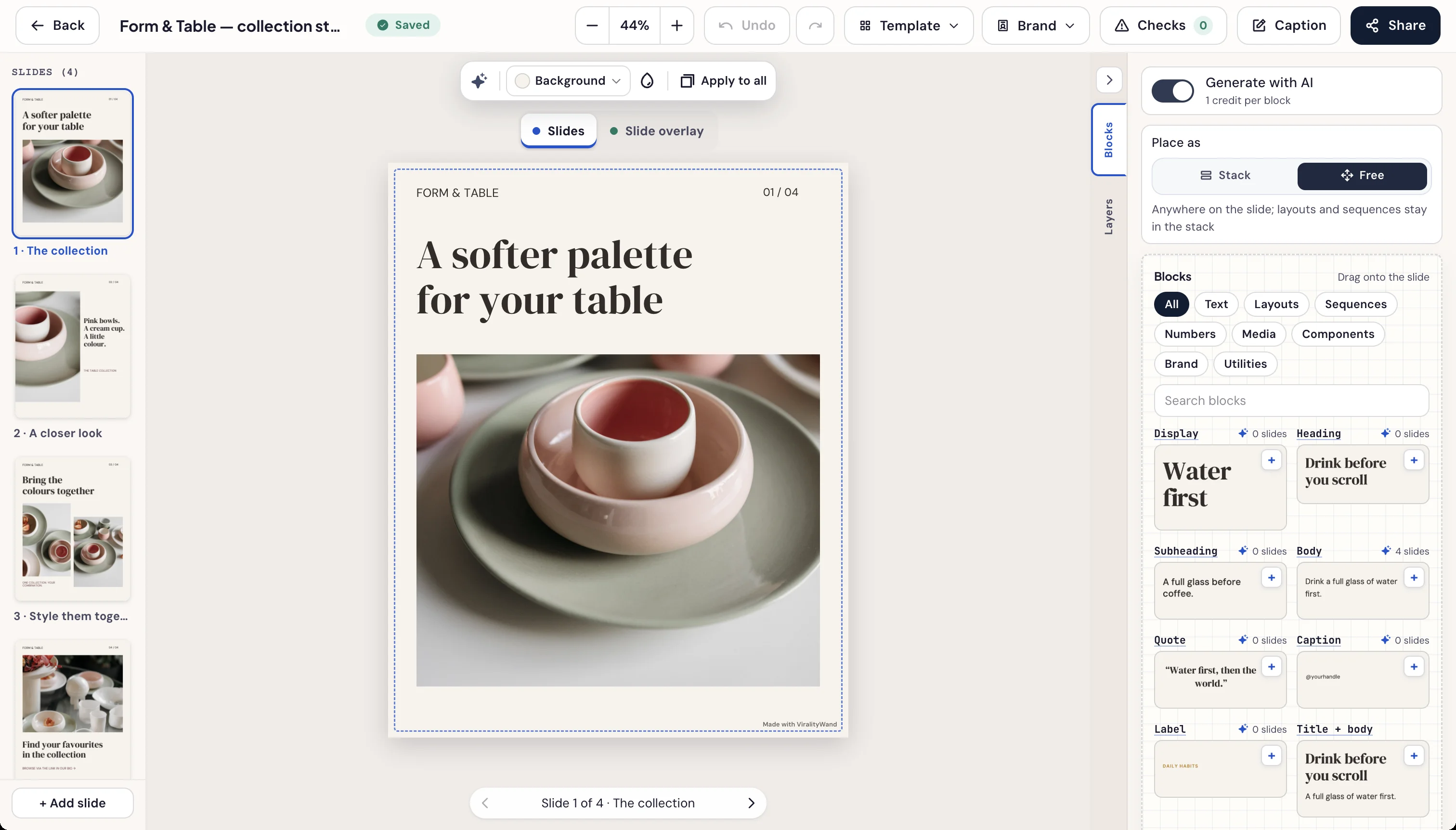
Your draft stays editable.
See the four slides in the real editor, select the headline and open the export controls.
Show the detailed steps
- Paste your product notes into the creation field. Open Photos and upload your images.
- Choose Settings → Writing → Shorten my text for existing product notes. Select a saved template; choose How it applies → Follow to keep its slide structure.
- Press Create. Review the draft against your supplied product details, then edit the text or adjust image crops.
- Open Share → Download ZIP to export the slides. When posting this Instagram example, put your collection URL in the shop’s bio.
The demonstration uses a dedicated local template. It is not automatically loaded by the creation button.
A few things you might be wondering
Can I use my own product photos?
Yes. Upload them in Photos and turn off Stock photos and AI images when you want the draft to use your own photography.
Can I change the text and layout?
Yes. The post stays editable: select text to change the wording, adjust image crops, and move or resize elements before exporting.
Can I include prices and product details?
Yes. Add the prices, sizes, materials or care instructions you want included. Your supplied information is the source; the app should not have to infer it from a photo. Review those details in the draft before publishing.
What do I need to start, and what does it cost?
Bring your photos and a few product details. AI generation uses credits. The free plan includes a starting allowance and watermarked exports; paid plans remove the watermark. See Pricing for current allowances and costs.
See pricing →Find your starting point
Choose a look for your post
Select a template to see it in the phone.
Give your next collection
a post of its own.
Start with your product photos and a few details.
Create my product postAI uses credits. Free exports include a watermark. Pricing
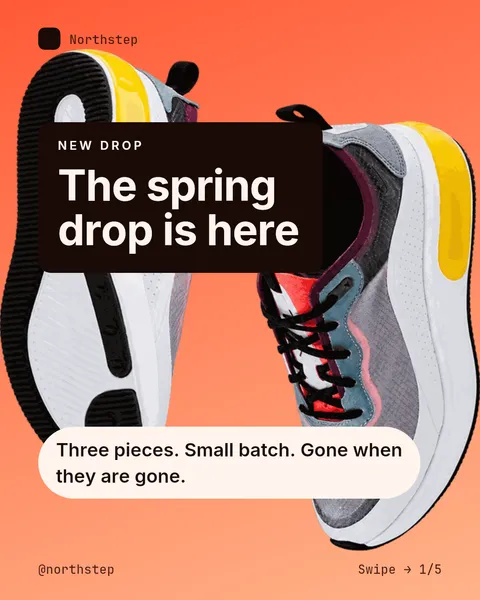
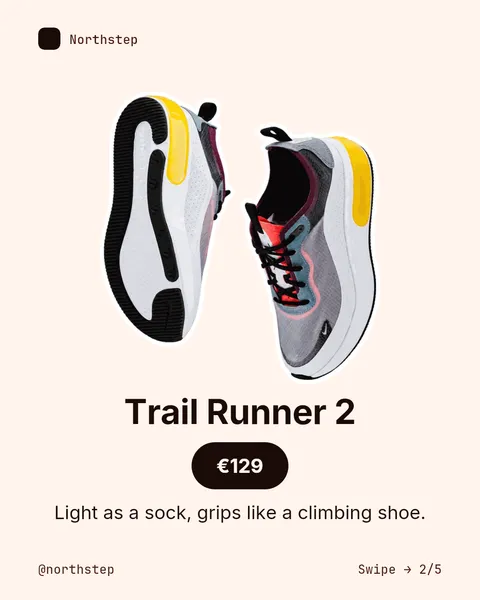
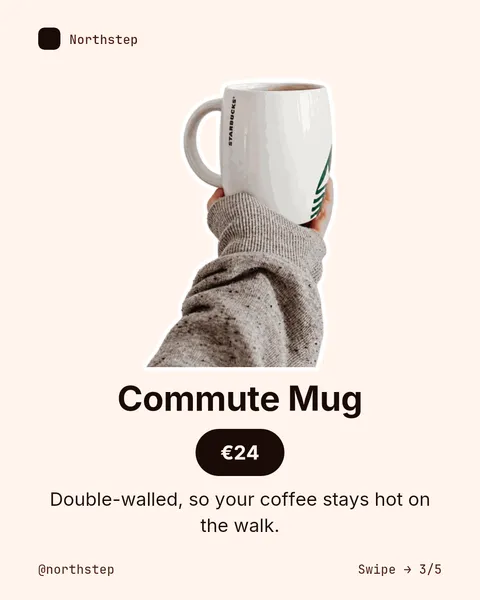
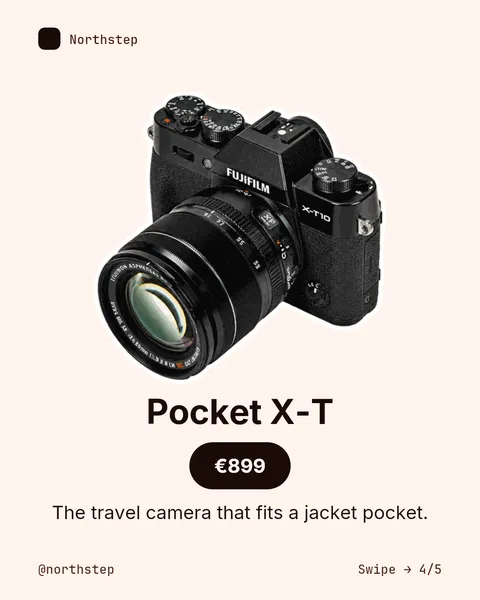
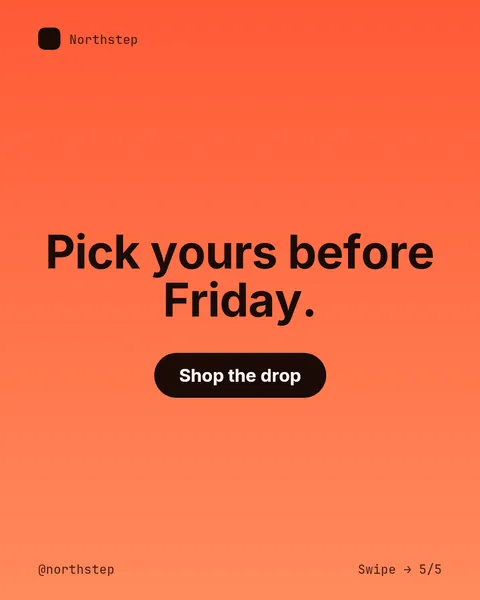
Cutout Drop
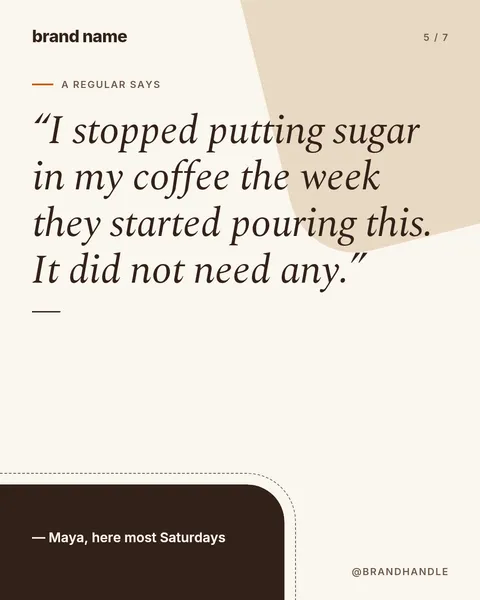
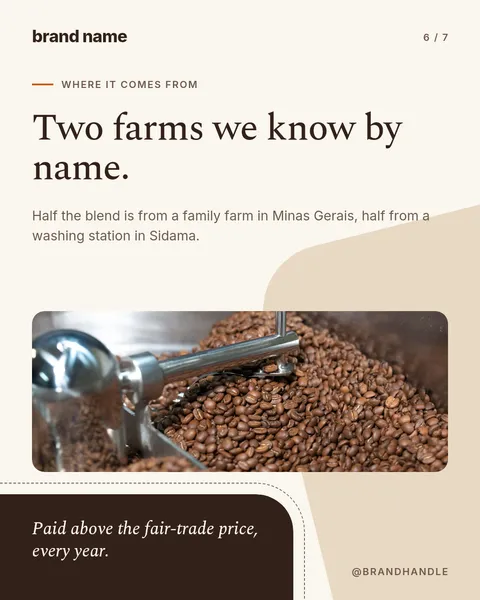
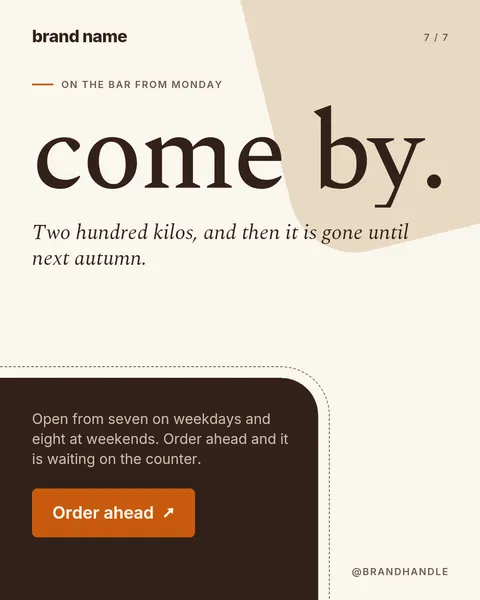
Espresso
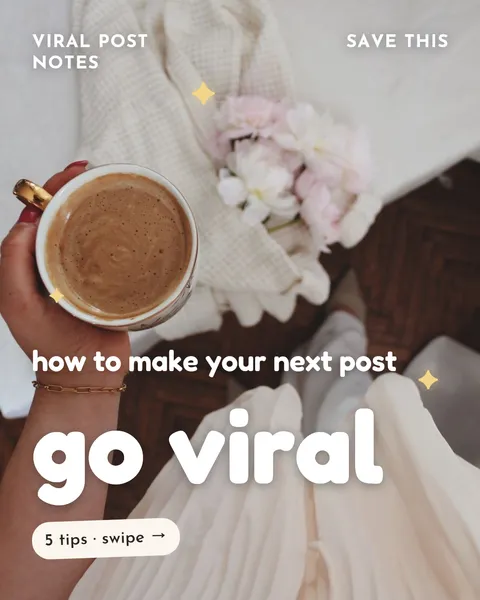



Viral Post Tips · Photo Journal
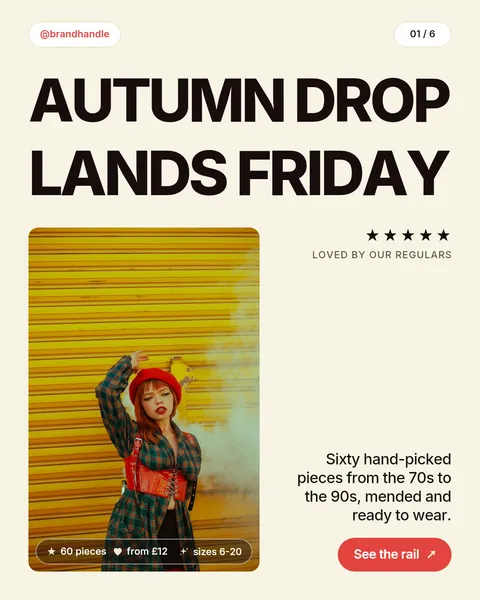
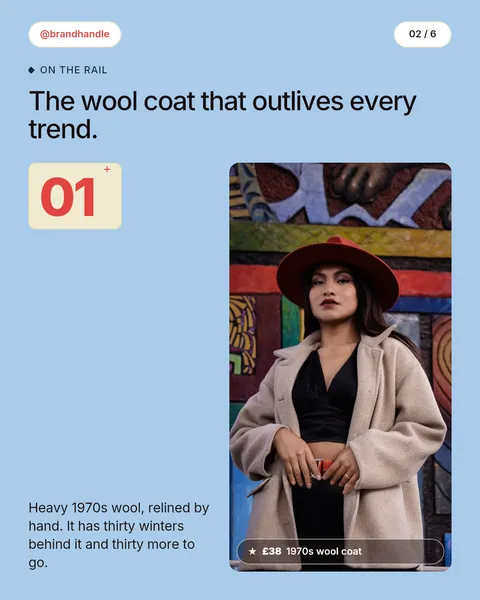
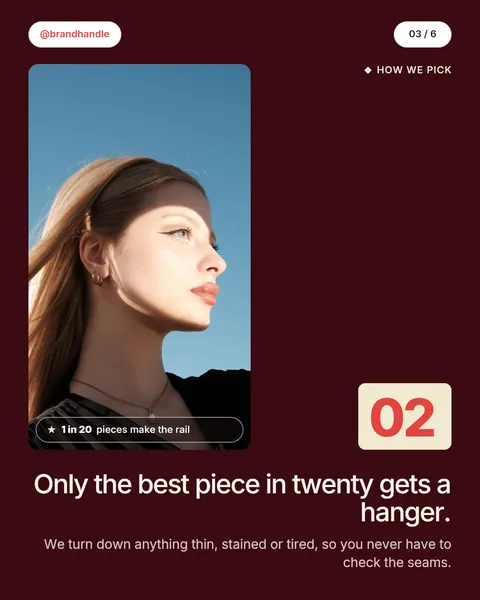
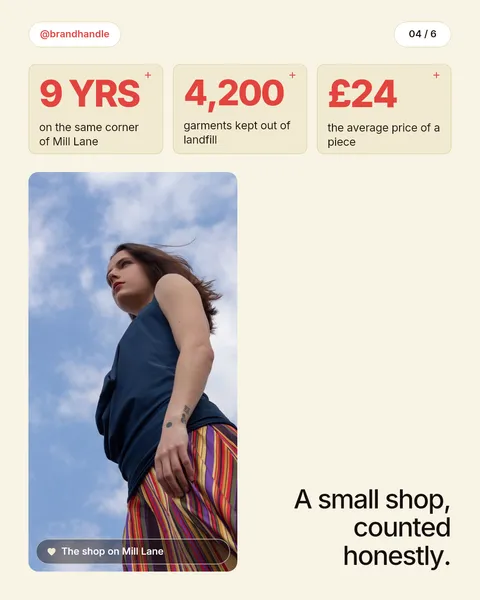
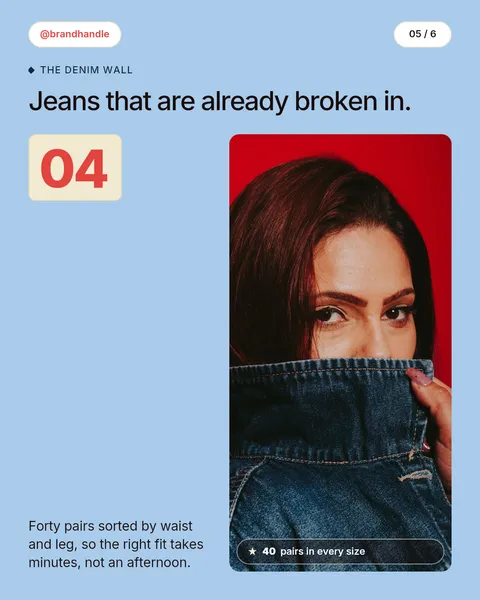
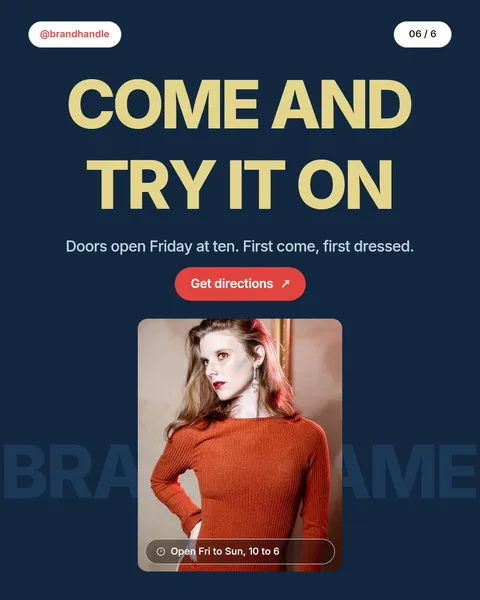
Runway
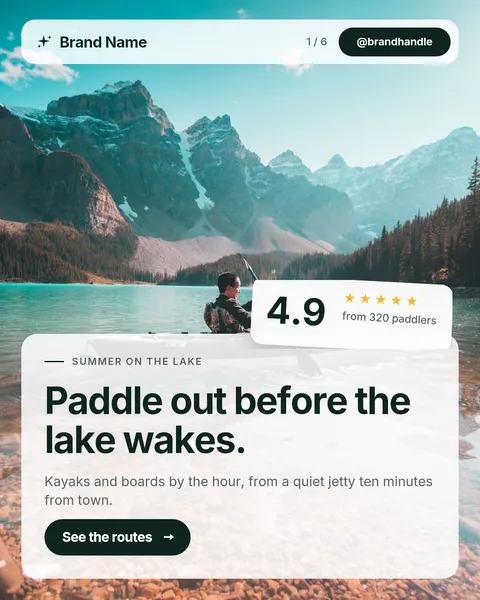
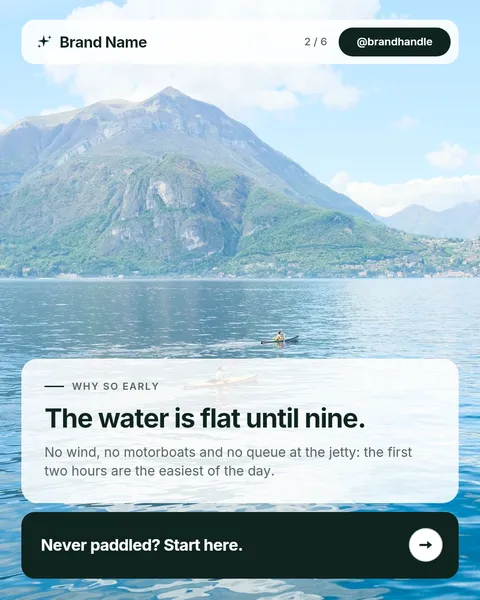
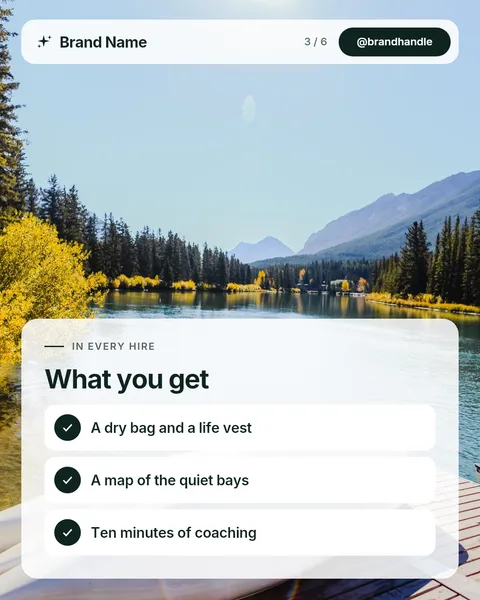
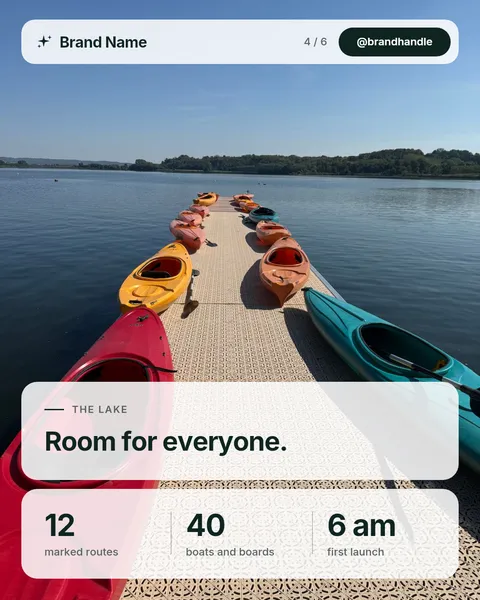

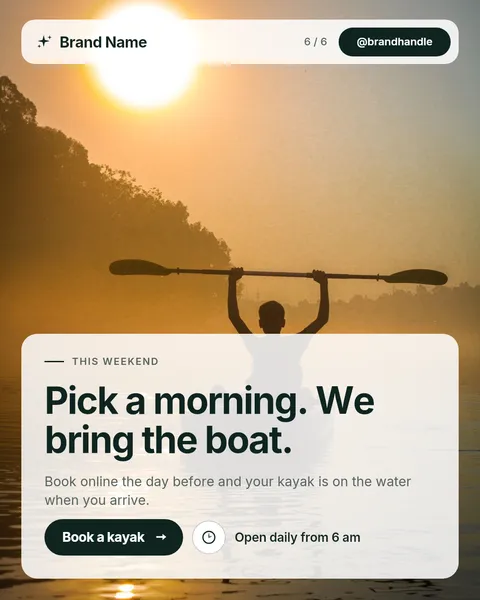
Frost Glass
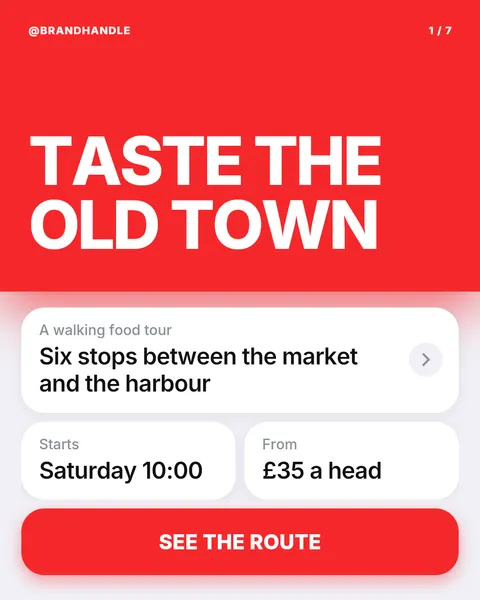
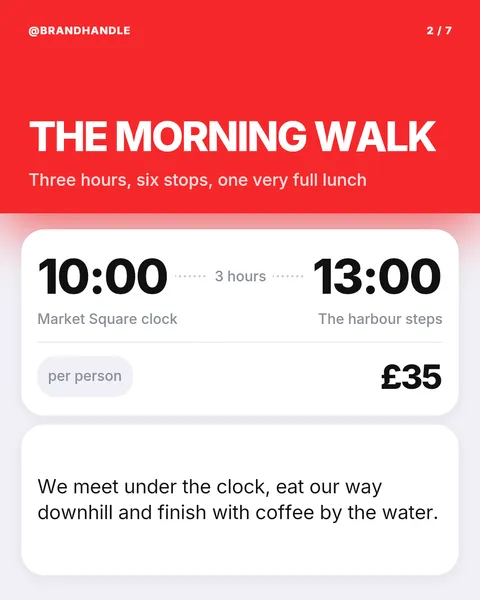
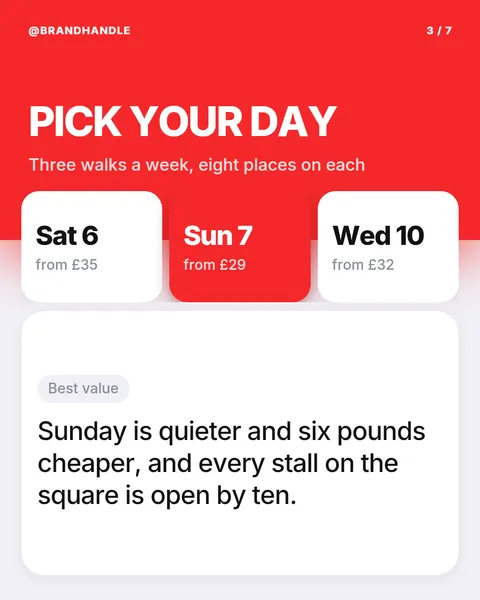
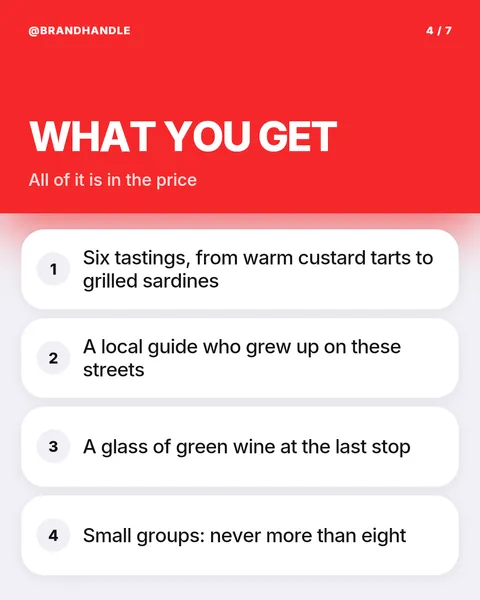
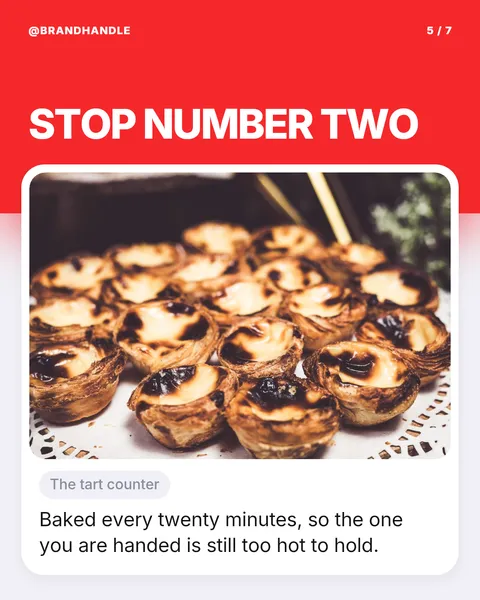
Signal Red
About this example
Form & Table is a fictional homeware brand. The four editable layouts follow the supplied collection → detail → styling → browse brief. Photography by Pavel Danilyuk, used under the Pexels licence. No product prices, sizes or materials are implied by the photographs.